


WELCOME / YOU’RE ALL SET
YOU’VE MET THE TEAM. NOW LET’S PUT WAGNER TO WORK.
You’ve seen what we do and how we back it. Here’s everything in one place so you can get set up whenever you’re ready — start with your account and the rest follows.
Your Wagner contact
Talk to Mikayla.
Your onboarding coordinator. She’ll get you set up on VisionLink and answer anything about your new machine.
Your setup checklist
-
Find your DCN
Caterpillar asks for your Dealer Customer Number when you register. It is already printed on your Wagner paperwork.
Open the DCN guide Three steps, whichever document you have in front of you. -
Open VisionLink
See where every machine is, how it’s running, and what’s due for service.
Open VisionLink No CWS account yet? Create one first — it takes two minutes. -
Get the Cat Central app
Your machines, parts, and service requests from your phone.
Download Cat Central Free, and it signs in with the same CWS account. -
Bookmark Parts.Cat.Com
Order the right part for your machine, any hour of the day.
Open Parts.Cat.Com Your machine’s serial number pulls up the right parts list.

Can’t find your DCN? I’ll text it to you.
Keep this page one tap away.
This page is the whole kit — your checklist, the apps, and Mikayla’s number. Add it to your home screen once and it opens like an app, so you never have to find the box again. Takes about fifteen seconds.
-
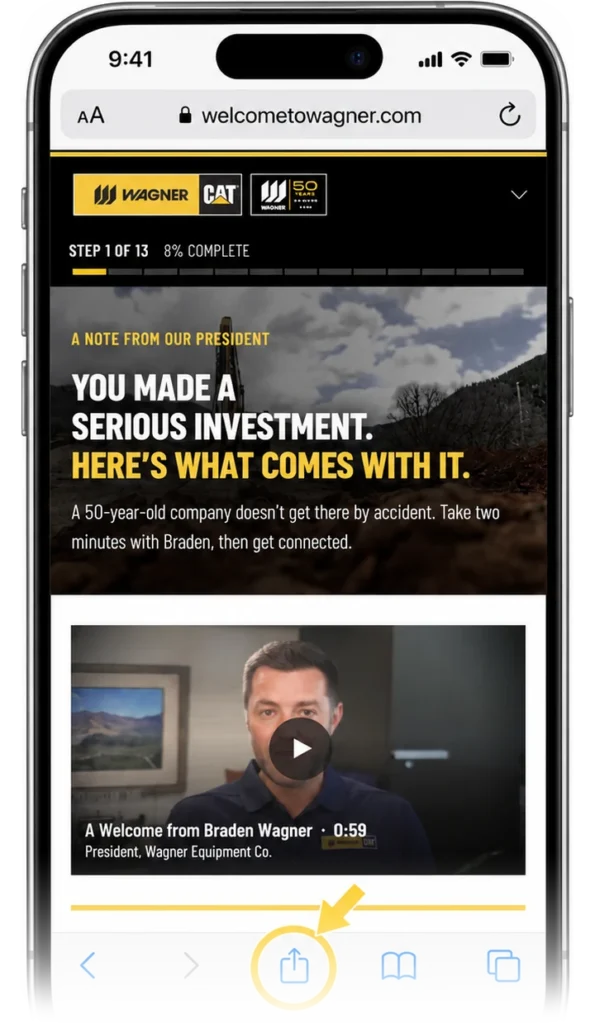 1
1Tap the Share button.
Open this page in Safari first.
-
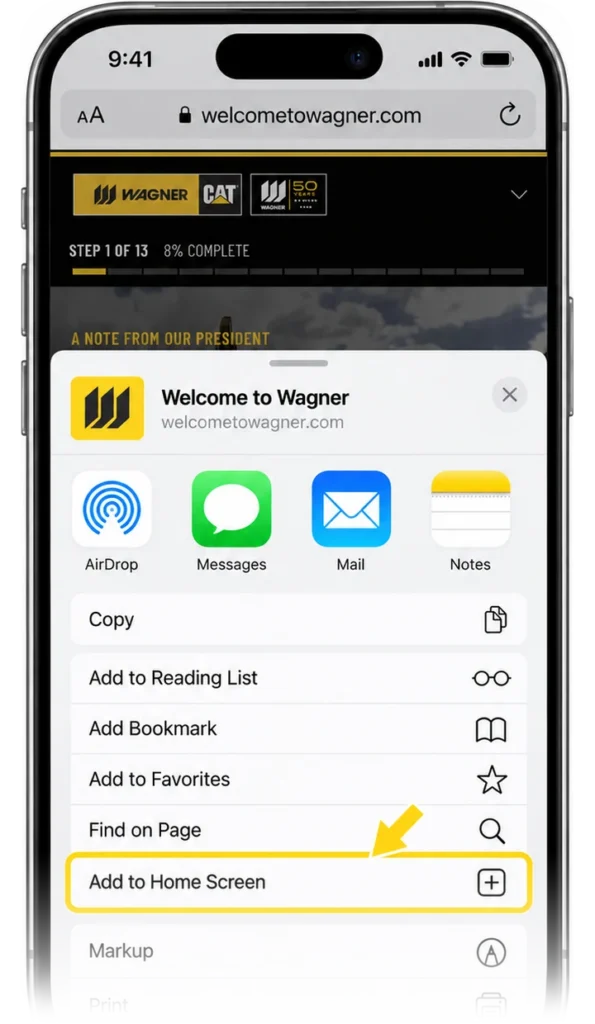 2
2Choose Add to Home Screen.
Scroll down in the share menu.
-
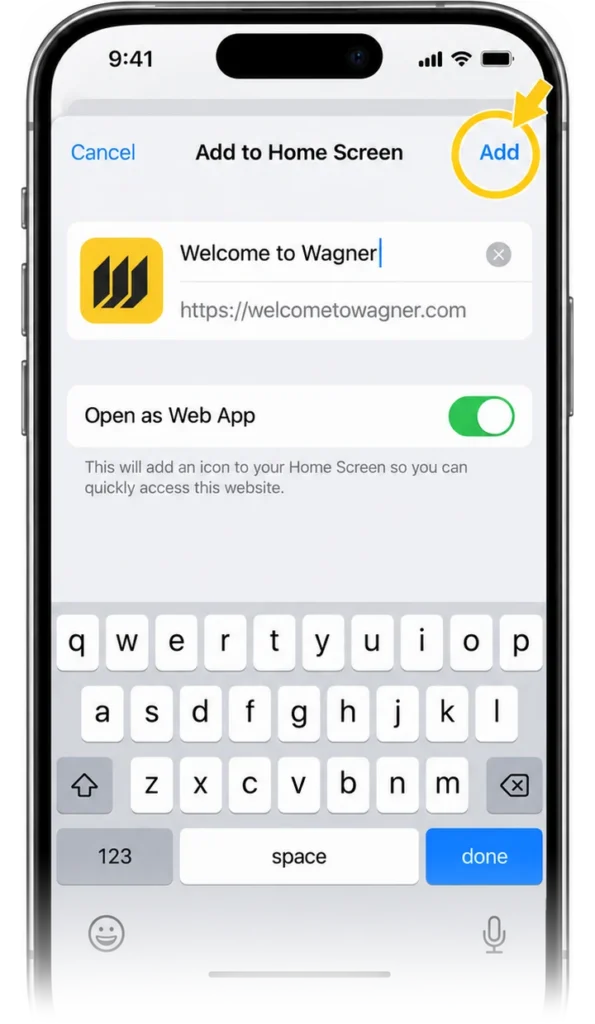 3
3Then tap Add.
Find Wagner on your home screen.
If you’re using Chrome on your iPhone instead
- 1Tap the three-dot menu.
- 2Choose Add to Home Screen.
- 3Tap Add.
-
 1
1Tap the three-dot menu.
Open this page in Chrome first.
-
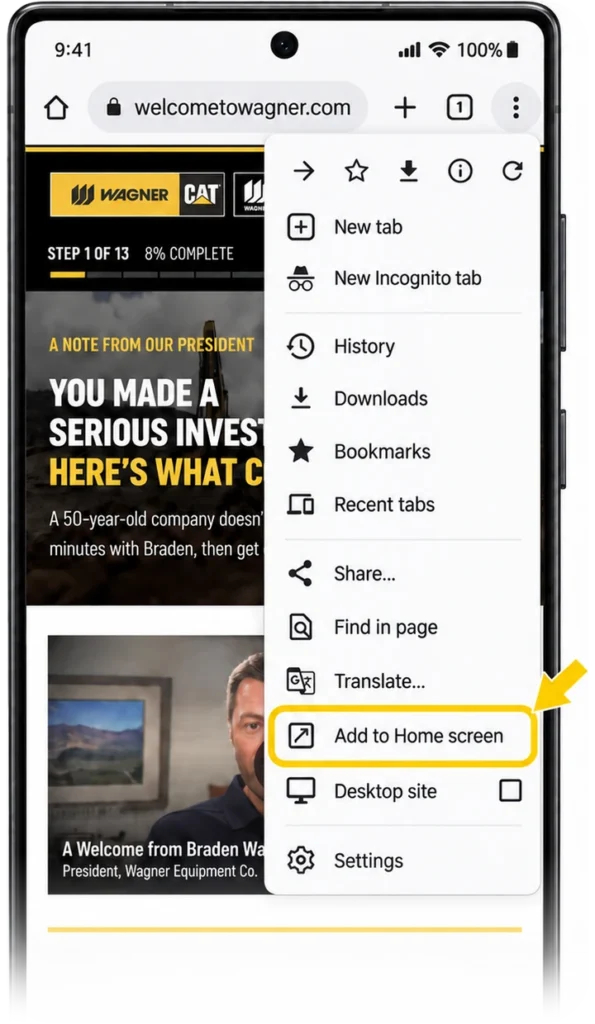 2
2Choose Add to Home screen.
Scroll down in the menu.
-
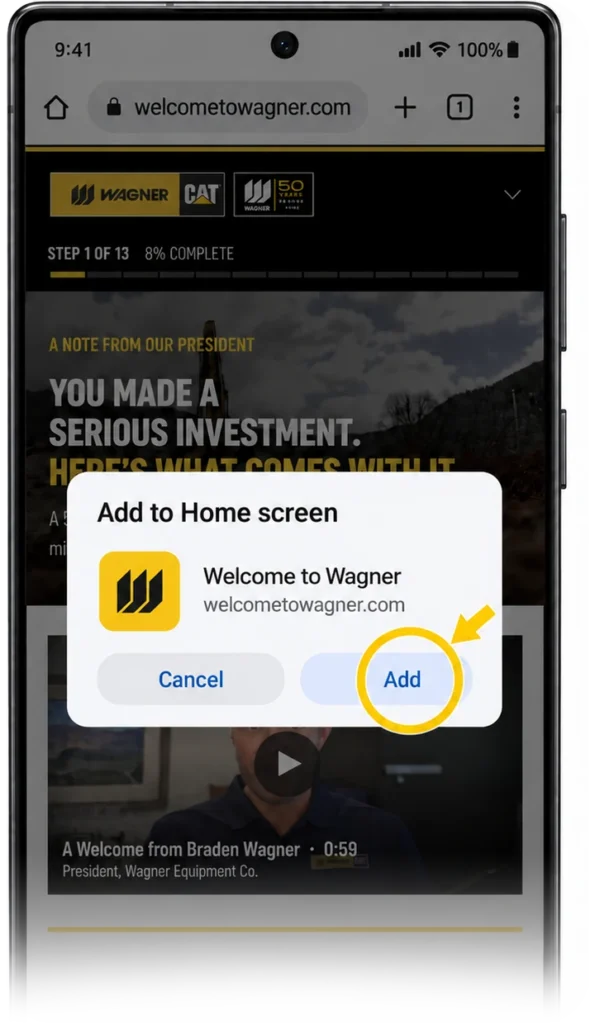 3
3Confirm with Add.
Find Wagner on your home screen.
If you’re using Samsung Internet or Firefox instead
- 1Tap the menu — three lines, bottom right.
- 2Choose Add page to, then Home screen.
- 3Tap Add.
welcometowagner.com/youre-all-set/
-
1
Scan the code with your phone.
It opens this same page, at this same step — your place in the thirteen is kept.
-
2
On iPhone: open the Camera app.
Point it at the code and tap the yellow banner that appears at the top.
-
3
On Android: open the Camera or Google Lens.
Point it at the code and tap the link. On some phones you tap the Lens icon in the camera first.
Once it is open on your phone
- 1Come back to this section on the phone.
- 2Pick iPhone / iPad or Android above.
- 3Follow the three steps there.
That’s everything.
Let’s do the work. No pressure — come back anytime.